Core Concepts
Key terminology and booking system components
Understanding these core concepts will help you configure your booking system effectively.
Sites
A site represents your business location (typically, a pharmacy). Each site has its own:
- Contact details (name, email, phone)
- Physical address and timezone
- Trading hours
- Resources and services
- Bookings and customers
If you have access to multiple sites in Light, you can switch between them using the site selector.

Trading Hours
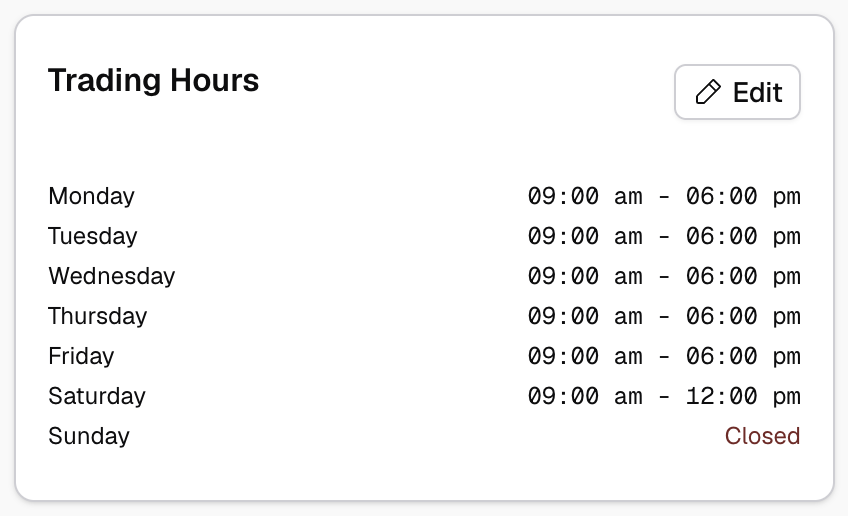
Trading hours define when your site operates.
Trading hours are defined in three layers:
- Your standard weekly schedule (trading hours for each day of the week)
- Your default public holiday policy ("open", or "closed")
- Specific trading hour exceptions
Trading hours can be viewed and updated on the Settings page.
Availability Exceptions
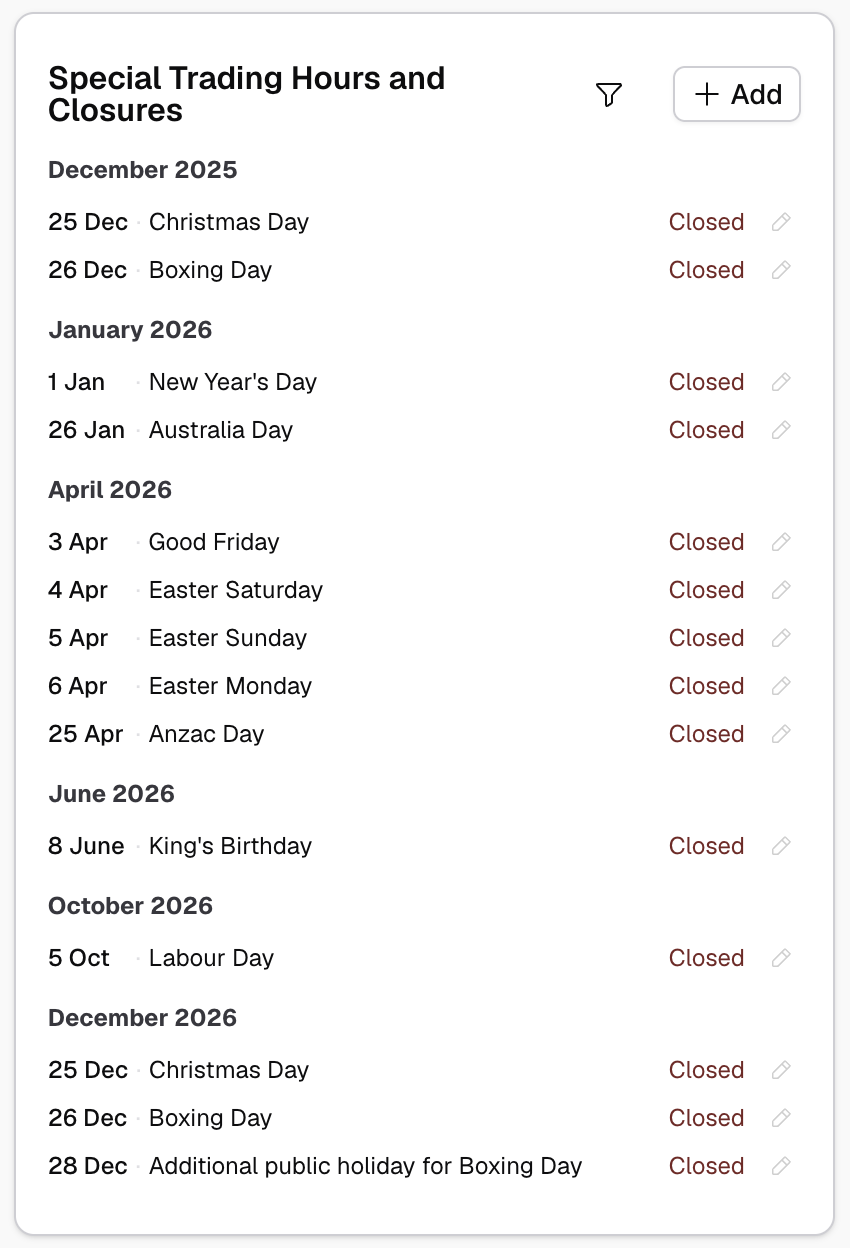
Exceptions are date-specific overrides to normal operating hours. You can use these to specify different trading hours for public holidays or other special occasions.
Exceptions can indicate that your site is either closed or open on a specific date, and/or that different operating hours are in effect on that date.
Light automatically lists public holidays for your jurisdiction, making it easy for you to indicate your trading intentions on these dates.
Note: Availability exceptions can be applied to trading hours as described above, but also to resource and service offerings as well.
Trading Hour Consideration
Trading hours are used in various ways by the platform:
- Displayed to customers on your public booking page
- Inherited as availability by resources with the 'Follow Site' availability mode (see below)
- Used to constrain your overall site booking availability (unless you configure otherwise)
By default, all resources are constrained by your site's trading hours. If your site is closed, all resources are unavailable, regardless of their own schedules. This is generally desirable - for example, if your site is closed on a public holiday, resources are automatically unavailable, without additional configuration. You can opt out individual resources from this behaviour if needed.
Resources
Resources are the things that can be booked - typically consultation rooms or pharmacists. Resources can also represent equipment or other facilities if needed.
When a customer makes a booking, the system assigns one or more resources to that appointment, depending on the service configuration. A resource can only take a single booking at a moment in time, preventing 'double booking'. For this reason, it's generally preferable to model your resources after real-world equivalents, such sa rooms or staff.
Resources can be created and managed in the Settings page under the Resources section.
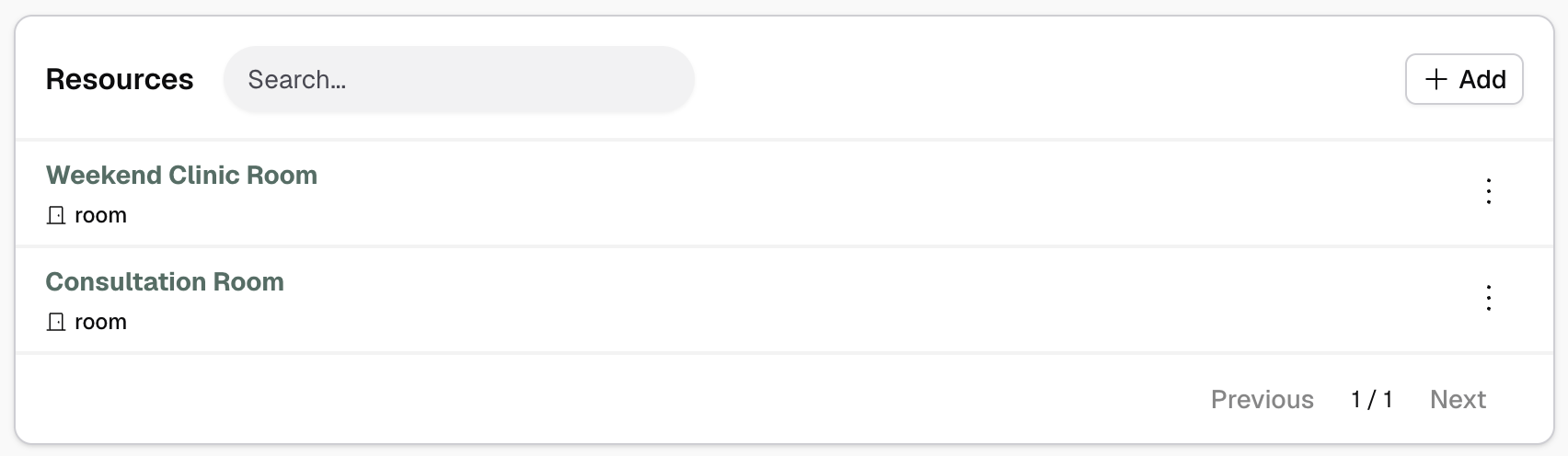
Each resource has:
- A name and identifier - Used to display and reference the resource
- A type (resource kind) like "Room" or "User"
- An availability mode - Determines how the availabilit of the resource is determined
- Links to services - Which services this resource can provide
- A colour and icon - For display in the calendar and booking interface
Resource Availability Modes
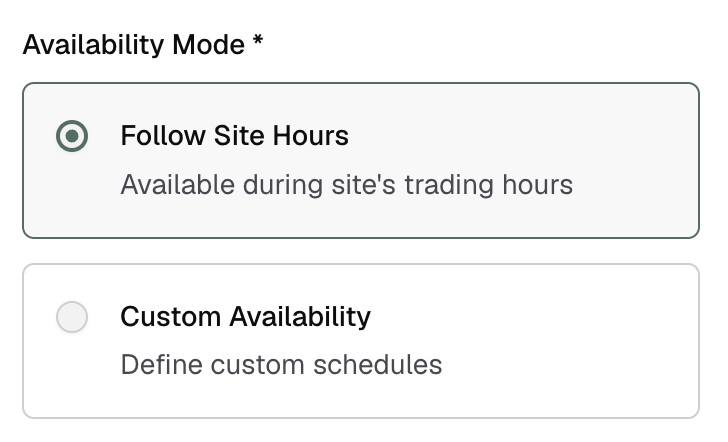
Resources availability can be defined in one of two ways:
Follow Site - The resource is available whenever your site is open according to trading hours (including exceptions). If you change your trading hours, your booking availability for this resource will also change.
Custom - The resource has its own specific schedule. This can be useful for scenarios like:
- Part-time staff or pharmacists with limited hours
- Resources that need regular breaks (use the split button to add e.g. lunch breaks)
- Resources available on different days than the site
By default, even resources with custom availability are still constrained by your site's trading hours (see Trading Hour Consideration above). You can opt out individual resources from this constraint if needed.
Resource Kinds
Resource kinds categorise your resources, such as "Room", "User", or "Device". Beyond display, resources with the "User" kind can be linked to a users in Light, indicating that the resource is a representation of the user.
Service Offerings
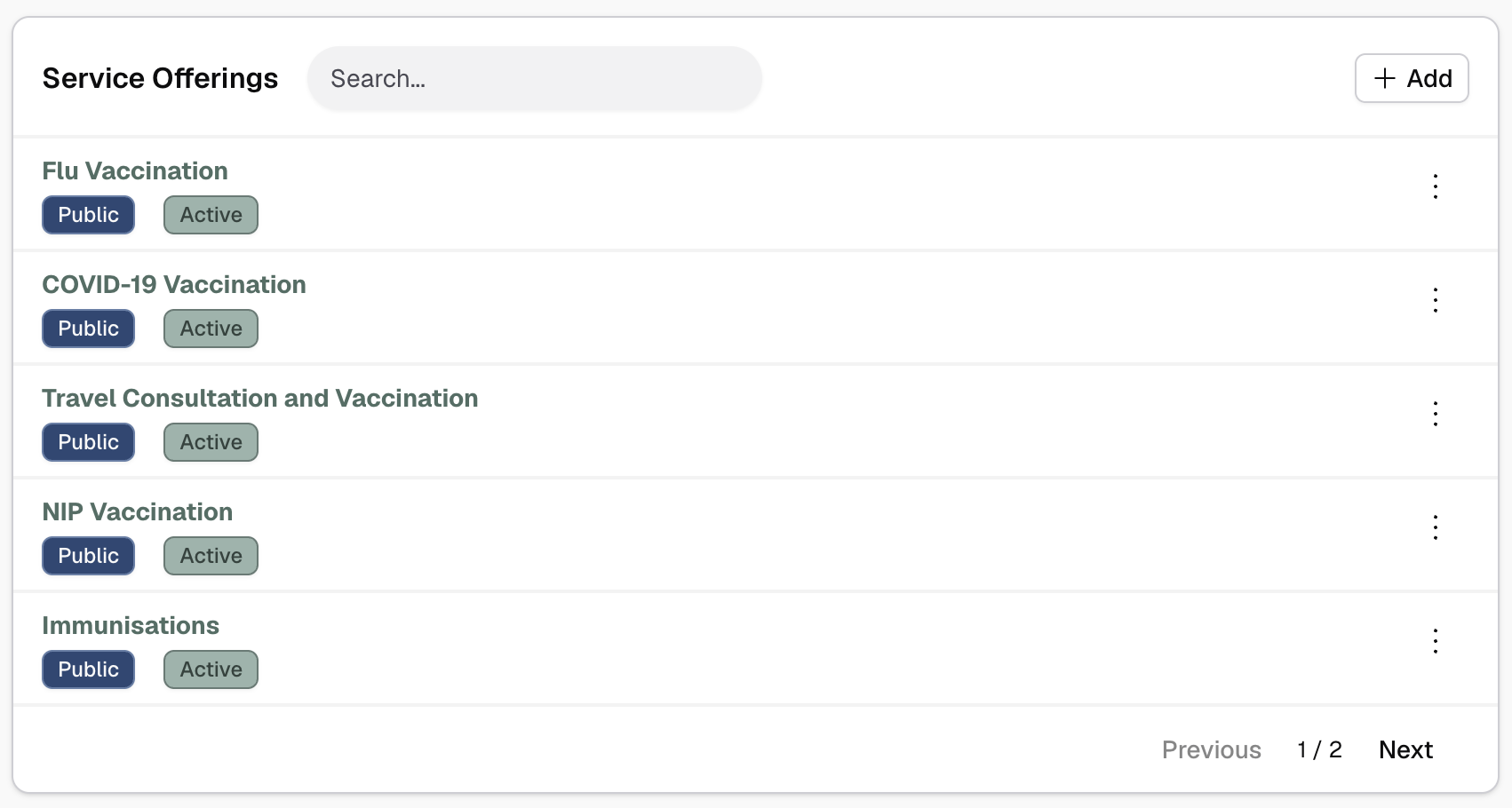
Service offerings are offerings of services. When you enable a service at your site, you create an offering with:
- Duration and pricing
- Scope (public, private, unlisted)
- Availability mode
- Links to resources that provide the service (when appropriate)
- Booking configuration (buffers, advance booking limits)
You will typically configure your service offerings during onboarding. These can then be updated from the Settings page.
Service Availability Modes
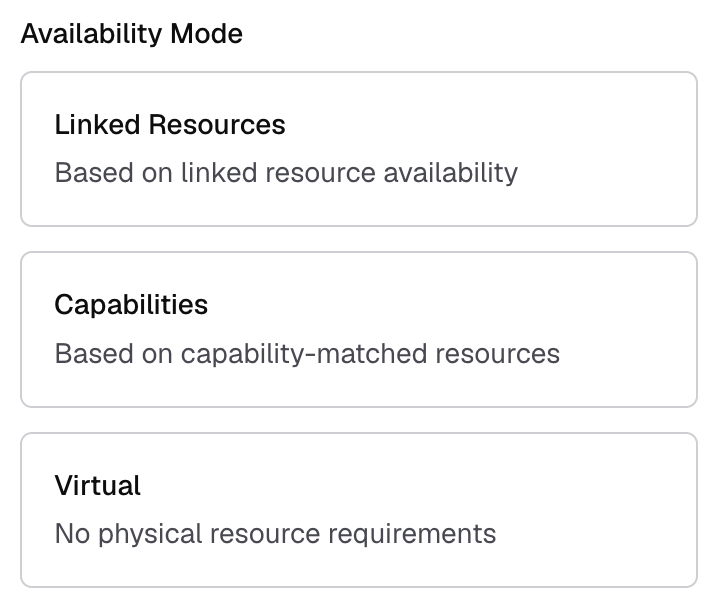
| Mode | Description |
|---|---|
| Linked Resources | Service is available when one or all linked resources are available |
| Virtual | Service has its own availability, independent of resources |
A service in the "Linked Resources" mode can also have its own availability specified, which will constrain its availability on top of that of any linked resources. This allows service-specific availability rules to be defined.
Availability Assignments
Availability assignments allow advanced configuration of availability of resources.
- Inclusions - Add available time
- Exclusions - Block out time
Multiple assignments can stack to create complex schedules.
Bookings
Bookings are appointments created in the platform. These may be created by customers via your public booking page, or by yourself in the platform.
A booking
- Has a date, time and duration
- May have a booking reference number, allowing it to be accessed externally
- May be linked to one more customers
- May be linked to a service, or service offering
- Is assigned to one or more resources
- Tracks status (pending, confirmed, checked-in, completed, cancelled)
- May have forms associated (e.g. a prescreener)