Resources
Understanding resources in the booking system
Resources are the things that can be booked - typically consultation rooms or pharmacists. When a customer makes a booking, depending on the service configuration, the system assigns one or more resources to prevent double-booking. You can also create bookings manually, within Light.
What Resources Represent
Resources can represent:
- Consultation rooms - Physical spaces for appointments
- Pharmacists or staff - People who provide services
- Equipment or facilities - Specialized resources needed for certain services
Most pharmacies model resources after real-world equivalents - rooms that can only handle one appointment at a time, or staff members with limited availability.
Where to Manage Resources
You can initially define resources during onboarding and can continue to manage them from the Settings page under the Resources section.
Tip: Use the command palette (Cmd+K or Ctrl+K) and search for "Resources" to quickly navigate.
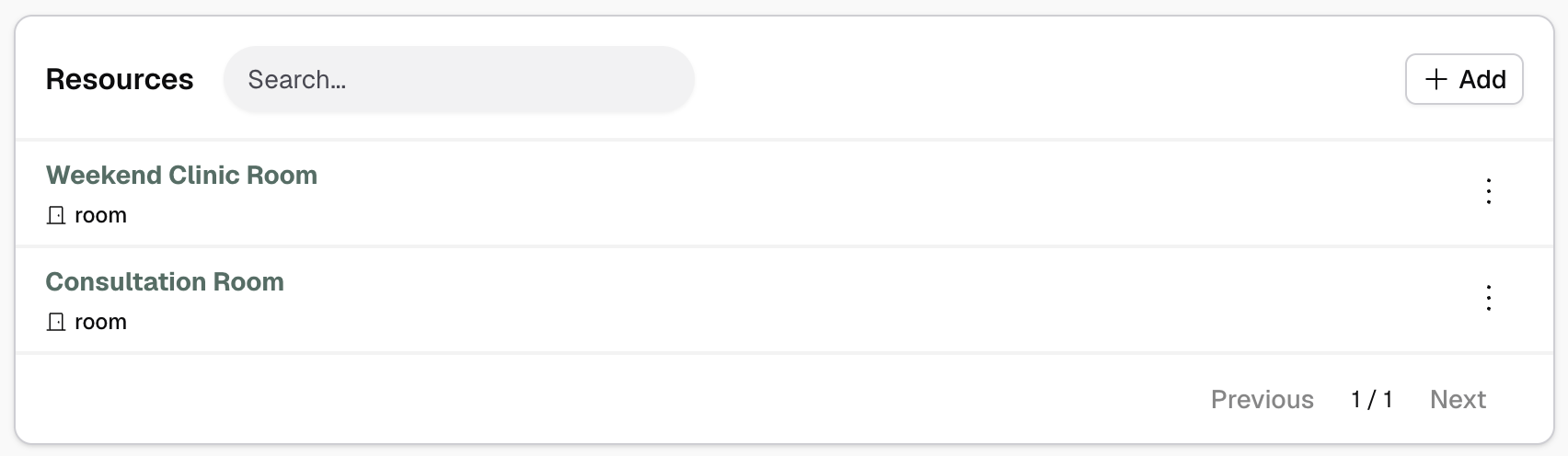
Resource Properties
Each resource has:
- Name and identifier - How the resource is displayed and referenced
- Resource kind - Category like "Room" or "User"
- Availability mode - Whether it follows site hours or has a custom schedule
- Linked services - Which services this resource can provide
- Colour and icon - For display in calendars and booking interfaces
How Resources Work with Services
Services are linked to resources to define what's needed to deliver that service. When a customer books:
- System checks which resources can provide that service
- Finds times when at least one resource is available (or all, if configured that way)
- Assigns one or more available resources to the booking, per configuration
- Those resources become unavailable for other bookings at that time