Availability Modes
Understanding Follow Site vs Custom availability
When creating or editing a resource, you choose how its availability is determined. This page explains the two modes and when to use each.
Follow Site (Default)
The resource is available whenever your site is open according to trading hours.
How it works:
- Resource inherits your weekly trading hours
- Automatically picks up trading hours exceptions
Use this for:
- Consultation rooms available all operating hours
- Equipment available whenever the site is open
- Resources that don't have their own specific schedules
Example: A consultation room is available Monday-Friday, 9 AM - 5 PM because that's when the pharmacy is open. If you close for a public holiday, the room is automatically unavailable.
Custom
The resource has its own specific schedule, independent of site trading hours.
How it works:
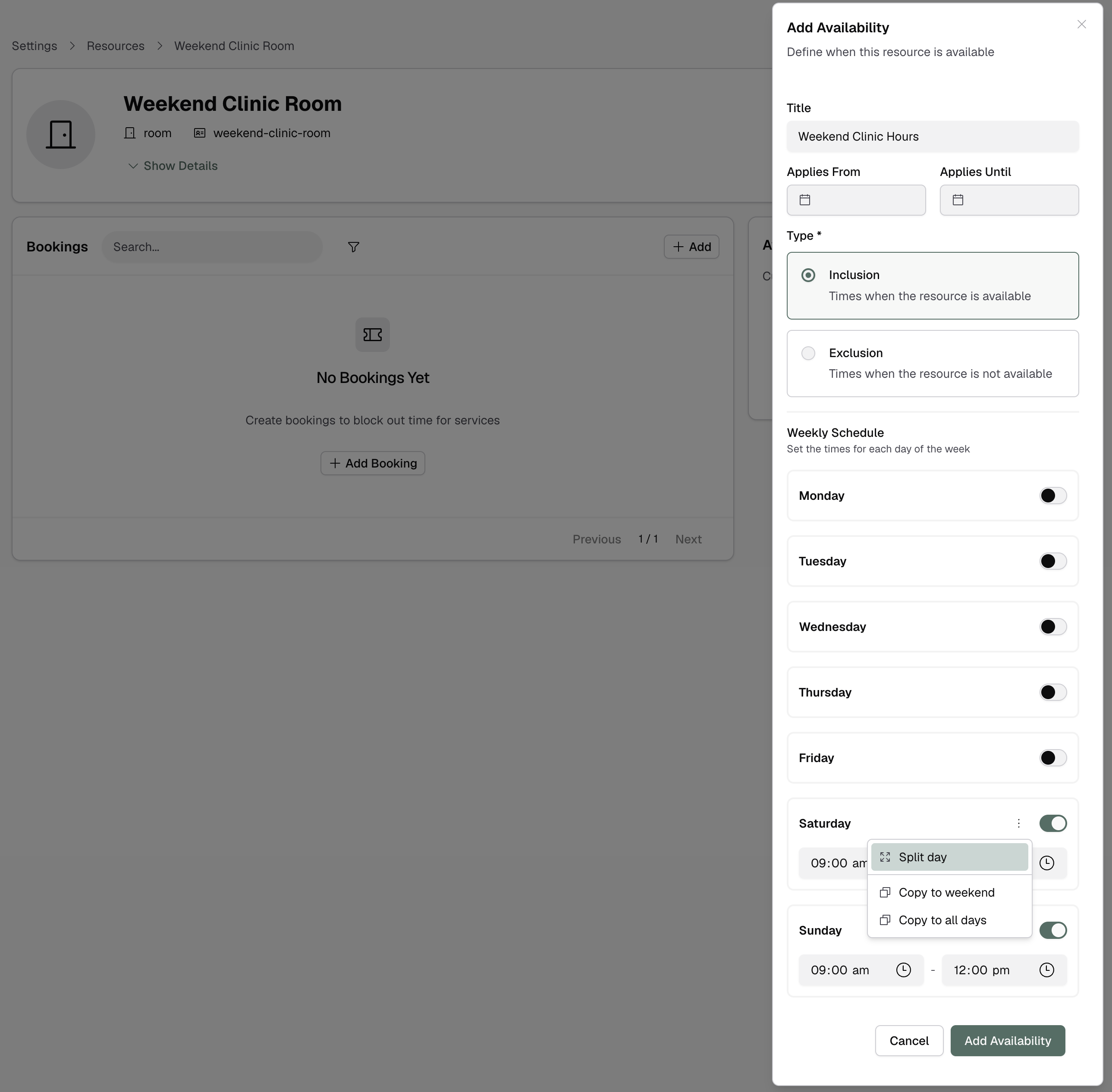
- Define custom weekly hours for this resource
- Can differ completely from site hours
- Use the split button to add breaks
Use this for:
- Part-time staff or pharmacists with limited hours
- Resources available on different days than the site
- Resources that need regular breaks (lunch, etc.)
Example: A baby clinic pharmacist only works Tuesday-Thursday, 10 AM - 3 PM, even though the pharmacy is open Monday-Friday, 9 AM - 5 PM.
Still Constrained by Site Hours
By default, even resources with custom availability are constrained by your site's trading hours. This means that if your site is closed, the resource is unavailable (regardless of custom hours)
For example:
- If site hours are 9 AM - 5 PM, a resource with custom hours of 8 AM - 6 PM is only available 9 AM - 5 PM
- If site has a closed availability exception, a resource with custom hours of any kind will not be open.
You can opt out individual resources from this constraint if needed (see Creating Resources).
Changing Modes
You can switch a resource between Follow Site and Custom at any time:
- Go to the resource detail page
- Click Edit
- Change the availability mode
- Save
Existing bookings are not affected, but future availability updates immediately.
Which Should You Choose?
Choose Follow Site if:
- The resource is always available during operating hours
- You want automatic updates when site hours change
- You don't need special schedules or breaks
Choose Custom if:
- The resource has limited or different hours
- You need to define breaks or split shifts
- Availability doesn't match site hours