Setting Trading Hours
How to configure and update your trading hours
This page walks through setting and updating your trading hours.
During Onboarding
Trading hours are configured in Step 4 of onboarding. You'll see a table with each day of the week.
After Onboarding
To update your trading hours:
- Go to Settings
- Find the "Trading Hours" card (right side)
- Click the Edit button
- A sheet will slide in with your current hours
Tip: Use the command palette (Cmd+K or Ctrl+K) and search for "Trading Hours" to quickly navigate to Settings.
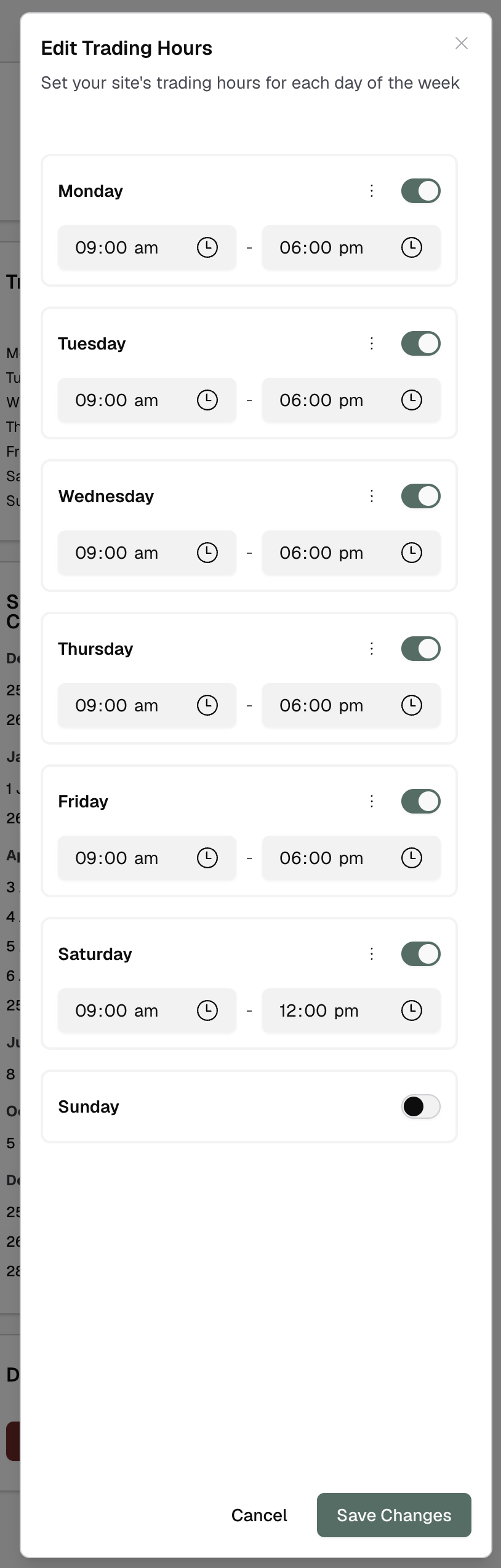
Setting Hours for Each Day
For each day of the week, you can:
- Toggle trading on/off - Use the switch on the right
- Set time blocks - Enter opening and closing times
- Add multiple blocks - Click the + button to add morning and evening sessions
Day Actions Menu
Each day has an overflow menu (⋮) on the right. The options vary by day:
For weekdays (Mon-Fri):
- Unsplit day - Merge time blocks back into one
- Copy to weekdays - Apply this day's hours to all weekdays
- Copy to all days - Apply to every day
For weekend days (Sat-Sun):
- Unsplit day - Merge time blocks back into one
- Copy to weekend - Apply this day's hours to both weekend days
- Copy to all days - Apply to every day
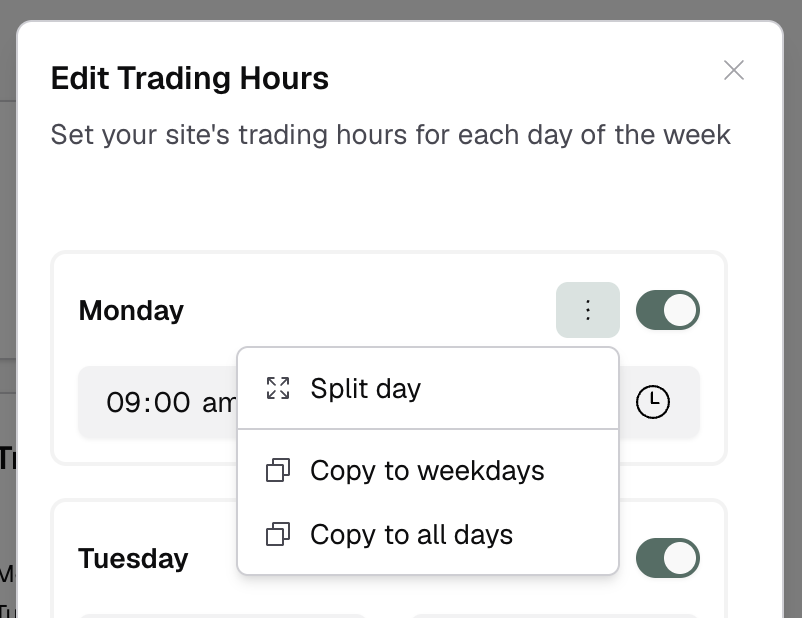
Split Button
Each time block has a split button. Click it to divide one block into two - useful for adding lunch breaks.
Example:
- Start with: 9:00 AM - 5:00 PM
- Click split
- Result: 9:00 AM - 12:00 PM and 1:00 PM - 5:00 PM
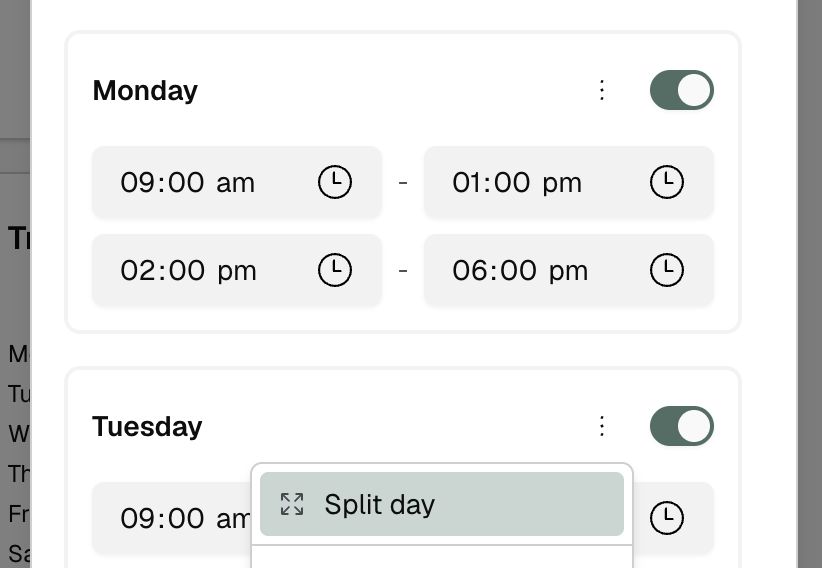
This is faster than entering the same hours repeatedly.
Public Holiday Policy
At the bottom of the dialogue, you'll see:
Closed by default on public holidays (checkbox)
- Checked: You're closed on all public holidays unless you add an exception
- Unchecked: You're open with normal hours on public holidays unless you add an exception
Most pharmacies check this box and then add exceptions for specific holidays they want to open.
Saving Changes
Click Save Changes at the bottom. Your new hours take effect immediately and update booking availability.